

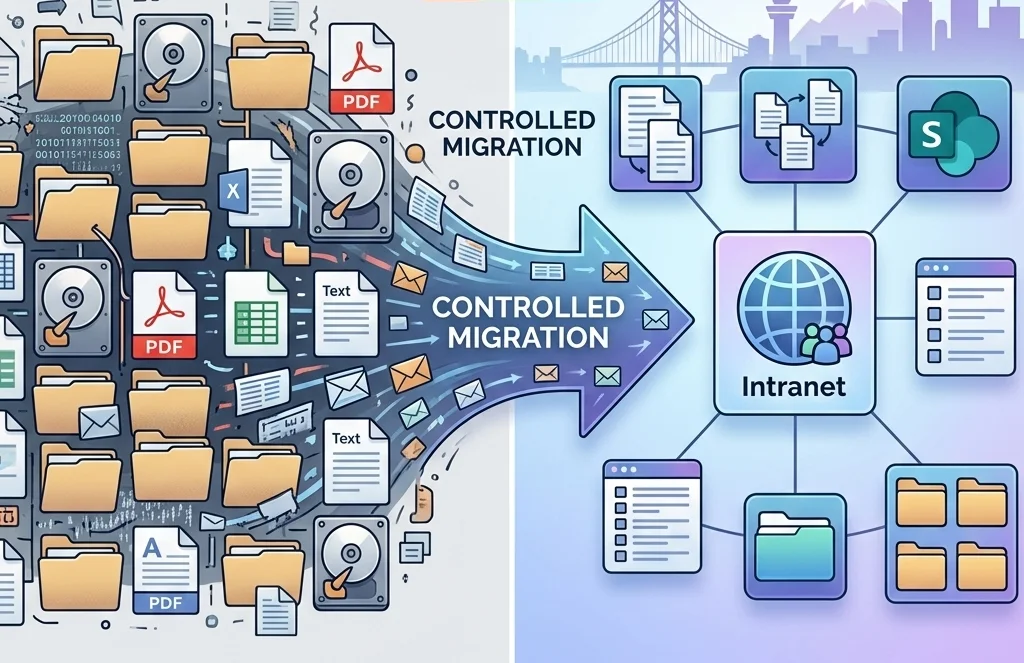
How to Migrate from Shared Drives to SharePoint Without Creating Digital Chaos — A Guide for Vancouver, BC Businesses
Organizations across Vancouver, BC are increasingly moving away from traditional shared drives and network file servers toward Microsoft SharePoint Online as part of broader Microsoft 365 adoption. While the benefits are clear better collaboration, improved access control, and centralized document management the migration process can quickly become chaotic without a structured approach.
This guide explains how to successfully migrate shared drives to SharePoint, avoid common pitfalls, and implement a scalable document management system aligned with SharePoint content migration best practices. Organizations often work with experienced providers such as Consentia to support planning, cleanup, and execution of SharePoint migration projects in Vancouver, BC.
Why Move from Shared Drives to SharePoint?
Before diving into the migration process, it’s important to understand why many businesses are prioritizing SharePoint migration in Vancouver, BC and across Alberta.
Shared drives are typically:
- Difficult to organize consistently across teams
- Prone to duplication and version confusion
- Limited in permission granularity
- Dependent on local infrastructure or VPN access
In contrast, SharePoint offers:
- Centralized cloud-based document storage
- Advanced permission controls at site, library, and file levels
- Metadata-driven organization instead of rigid folder hierarchies
- Seamless integration with Microsoft 365 tools like Teams and OneDrive
- Built-in versioning, auditing, and collaboration features
Working with platforms like SharePoint also enables organizations to modernize workflows while maintaining better governance over their data.
Key Challenges in Migrating Shared Drives to SharePoint
A successful file server migration to Microsoft 365 requires addressing several challenges:
- Unstructured or inconsistent folder hierarchies
- Redundant, outdated, or trivial (ROT) data
- Deeply nested file systems that don’t translate well to SharePoint
- Permission sprawl and inherited access issues
- Legacy file formats and archived content
Without addressing these issues upfront, organizations risk replicating the same inefficiencies in SharePoint that existed in shared drives.
Step 1: Assess and Audit Your Existing Data
The first step in any shared drive to SharePoint migration guide is a full audit of your current data.
This includes:
- Identifying all file repositories (network drives, NAS systems, local archives)
- Categorizing data by department, function, or project
- Measuring total data volume and file types
- Reviewing permissions and access patterns
This stage helps determine the scope of your SharePoint migration Vancouver, BC project and informs planning decisions such as site architecture and document library structure.
Step 2: Clean Up ROT Data Before Migration
ROT data cleanup is a critical part of SharePoint file migration Alberta initiatives.
ROT stands for:
- Redundant: Duplicate files stored in multiple locations
- Obsolete: Outdated documents no longer in use
- Trivial: Files that have little to no business value
Cleaning up ROT data before migration reduces storage costs, improves searchability, and ensures that only relevant content is moved into SharePoint.
Why ROT Cleanup Matters
- Reduces migration complexity
- Improves system performance
- Enhances user adoption
- Supports better data governance and compliance
Step 3: Design Your SharePoint Information Architecture
One of the most important aspects of a successful migration is designing a proper SharePoint structure instead of replicating old folder systems.
Key elements of SharePoint document library structure include:
- Sites representing departments or business units
- Document libraries for grouped content
- Metadata for classification and filtering
- Views for customized content visibility
How to Organize Files in SharePoint
- Avoid deep folder nesting
- Use metadata instead of relying only on folders
- Align document libraries with workflows
- Apply consistent naming conventions
- Structure content based on business functions
Proper planning at this stage prevents long-term disorganization and improves usability.
Step 4: Plan Permissions and Security Models
Permissions in SharePoint should be intentionally designed rather than inherited blindly from shared drives.
Best practices include:
- Defining user roles clearly
- Using SharePoint groups instead of individual permissions
- Limiting unique permissions at file level
- Aligning access with organizational structure
This ensures secure, manageable access without overcomplicating administration.
Step 5: Choose Migration Tools and Strategy
Migration tools and methods depend on organizational needs and complexity.
Common approaches include:
- Microsoft SharePoint Migration Tool (SPMT)
- Third-party migration platforms
- Hybrid or manual migration strategies
Many organizations in Vancouver, BC choose to work with a SharePoint migration consultant Vancouver, BC to help select tools, configure environments, and manage execution effectively.
Step 6: Pilot Migration and Testing
A pilot migration is essential before executing a full rollout.
It helps to:
- Validate SharePoint structure
- Test permissions and metadata mapping
- Identify file compatibility issues
- Gather user feedback
This step reduces risks and improves confidence before scaling migration.
Step 7: Execute Full Migration in Phases
Rather than migrating everything at once, a phased approach is more controlled:
- Migrate by department or business unit
- Prioritize critical data first
- Schedule migrations during low-activity periods
- Communicate timelines clearly
Phased execution allows for better monitoring and issue resolution.
Step 8: Train Users and Encourage Adoption
User adoption is often the deciding factor in migration success.
Training should cover:
- Navigating SharePoint libraries
- Uploading and sharing documents
- Using metadata and search functionality
- Collaborating through Microsoft Teams integration
When users understand the structure and benefits, adoption becomes significantly smoother.
SharePoint Migration Checklist 2026
- Audit shared drives and data sources
- Identify and clean ROT data
- Design SharePoint architecture
- Define document libraries and metadata
- Plan permissions and access control
- Select migration tools
- Run pilot migration
- Execute phased migration
- Validate and test migrated data
- Train users and document processes
- Monitor and optimize post-migration
Biggest Mistakes Companies Make During Migration
- Migrating without cleaning up ROT data
- Replicating shared drive folder structures
- Ignoring metadata and relying only on folders
- Overcomplicating permission models
- Skipping user training
- Lacking governance planning
- Failing to involve stakeholders early
Avoiding these mistakes significantly improves outcomes and reduces rework.
How Long Does a SharePoint Migration Take?
Migration timelines depend on:
- Data volume
- Complexity of file structures
- Number of users
- ROT cleanup requirements
- Internal resource availability
For mid-sized organizations, migrations can take several weeks to a few months, depending on preparation and execution strategy.
Can Legacy Documents and Paper Records Be Migrated?
Yes, legacy documents and paper records can be digitized and stored in SharePoint.
This involves:
- Scanning physical files into digital formats
- Applying OCR for searchable content
- Organizing files using metadata
- Uploading into structured document libraries
This ensures historical records are preserved and accessible within the same system.
FAQs
1. How do I start a SharePoint migration from shared drives?
Begin with auditing your data, cleaning up ROT files, designing your SharePoint architecture, and selecting appropriate migration tools.
2. What is ROT data and should I clean it up before migrating?
ROT data includes redundant, obsolete, and trivial files. Cleaning it up before migration improves performance, reduces clutter, and ensures only relevant content is migrated.
3. How long does a SharePoint migration typically take in Vancouver, BC?
Timelines vary, but mid-sized organizations typically require several weeks to a few months depending on complexity and preparation.
4. Can I migrate paper files into SharePoint too?
Yes, paper documents can be digitized through scanning and uploaded into SharePoint with metadata classification.
5. What tools are used for SharePoint migration?
Common tools include Microsoft SharePoint Migration Tool (SPMT) and third-party migration solutions depending on scale and requirements.
6. What are the most common SharePoint migration mistakes?
Common mistakes include skipping data cleanup, replicating legacy folder structures, ignoring metadata, and failing to train users.
7. Do I need a SharePoint consultant for a migration project in Vancouver, BC?
While not always required, many organizations engage experienced providers like Consentia to support planning, execution, and governance of SharePoint migration projects.
Final Thoughts
Migrating from shared drives to SharePoint is a strategic move that improves collaboration, governance, and accessibility of organizational data. Success depends on proper planning, ROT cleanup, thoughtful information architecture, and user adoption.
For organizations in Vancouver, BC, partnering with experienced teams such as Consentia can help ensure the migration process is structured, efficient, and aligned with long-term document management goals without creating digital chaos.