

What Are the Most Common Mistakes in Document Scanning?
For most organizations, scanning errors can become extremely costly. One improperly scanned batch of files can lead to failed audits, unreadable records, and hours of rework. When digitizing any kind of paperwork, understanding the most common scanning mistakes and how to fix them is the key to making digital files effective.
Why Scanning Mistakes Matter More Than You Think
For organizations that rely on digital records, the quality of scanned documents is critical. Yet many businesses underestimate how easily poor scan quality causes issues, resulting in archives full of illegible files, failed text extractions, and compliance risks.
The good news: almost all common document scanning mistakes are preventable. In this blog, we break down the most frequent errors and how to address them.
The Most Common Document Scanning Mistakes
1. Skipping Document Preparation
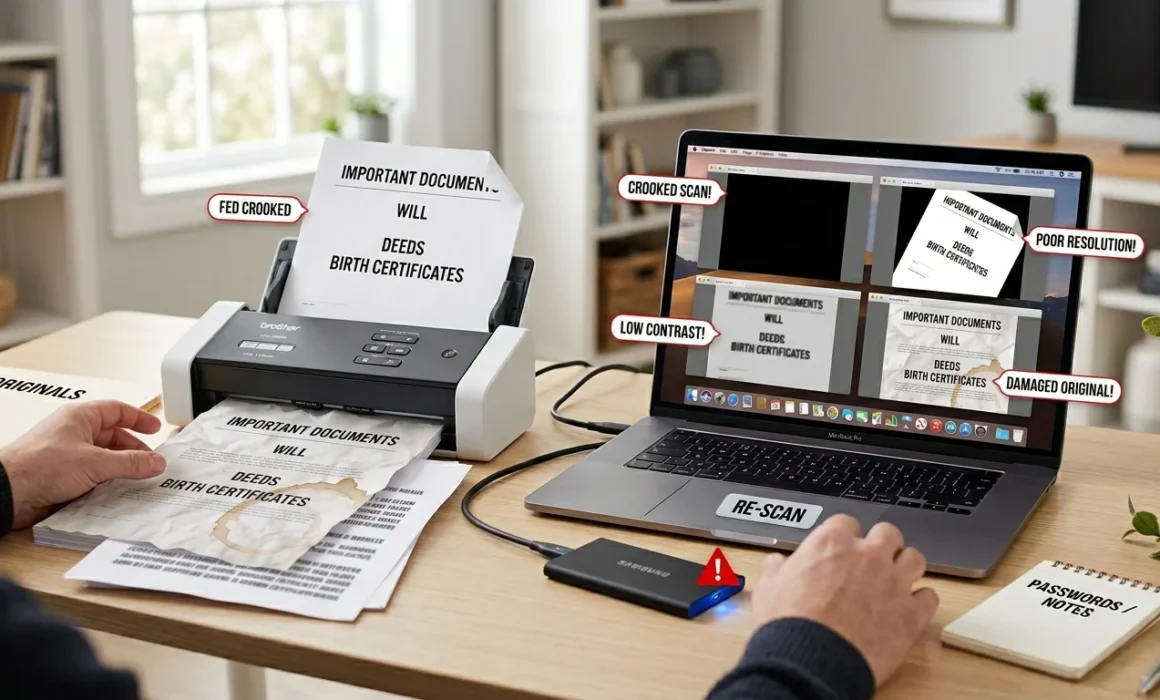
One of the most overlooked steps in scanning workflows is the preparation stage before the paper even touches the machine. Pages that are stapled, folded, torn, or covered in sticky notes are far more likely to jam feeders, scan unevenly, or produce shadow artifacts that reduce legibility.
To prepare for scanning, staff should:
- Remove all staples, paper clips, and binding
- Unfold and flatten creased or dog-eared pages
- Sort documents into logical batches by type or date
- Discard or separately flag any damaged pages
Skipping this step is one of the most common scanning workflow errors in high-volume environments, where speed often takes priority over preparation.
2. Using the Wrong Resolution (DPI)
Resolution, which is measured in dots per inch (DPI), has an impact on both readability and file size. When the DPI is too low, the text becomes pixelated. This is a leading driver of OCR accuracy issues. When scanned too high, it creates unnecessarily large files that slow down workflows, including storage, retrieval, and sharing.
Recommended DPI settings by document type:
| Document Type | Recommended DPI |
| Standard business documents | 300 DPI |
| Documents with small print | 400 DPI |
| Archival or historical records | 400–600 DPI |
| Engineering drawings or maps | 600 DPI |
| Photographs | 600–1200 DPI |
The standard DPI for most office documents is 300 DPI. Going below 200 DPI almost always results in unacceptable quality.
3. Ignoring Lighting and Exposure Settings
Poor lighting is also a common cause for poor scan quality. A flatbed scanner with dirty or scratched glass will scatter light unevenly across the page. This creates bright spots, dark patches, or faint streaks in the digital output. Overexposed scans wash out light-coloured ink, while underexposed scans make dark backgrounds even darker and may obscure text.
To help manage scan exposure:
- Regularly clean flatbed glass with a lint-free cloth
- Avoid scanning in direct sunlight, which can affect flatbed sensors
- Use auto-exposure features as a starting point and make manual adjustments accordingly, especially for documents with coloured backgrounds or faded ink
- Use a sample page to test settings before running a full batch
4. Choosing the Wrong File Format
Some file formats are better suited for certain document types. Saving everything as a certain file type may be a significant contributor to OCR accuracy issues. Choosing the right format from the start saves rework down the line.
Common formats and their best uses:
- PDF/A – Ideal for long-term archival; a standard for legal and compliance documents
- TIFF – High-quality, lossless format suited for archival imaging and medical records
- PDF (searchable) – Best for everyday business documents that need to be keyword-searchable
- JPEG – Acceptable for photographs, but should be avoided for text-heavy documents
Working with a professional document scanning service provider ensures the right format is selected and applied consistently across your entire document library.
5. Neglecting OCR Quality Control
Optical character recognition (OCR) is only as reliable as the scan it’s working from. Even with good software, OCR accuracy issues arise when scanned documents are skewed, low-contrast, or contain unusual fonts or handwriting. Many organizations run OCR without checking whether the resulting text is accurate. This leads to technically searchable documents, but they return incorrect or distorted results.
To improve OCR results:
- Always deskew and de-speckle scanned images before processing
- Use OCR software with confidence scoring to flag low-accuracy pages for manual review
- Run periodic spot-checks on OCR output, especially for older or damaged documents
- Consider zone OCR for structured forms where field-level accuracy is critical
6. Poor File Naming and Indexing
Even a perfectly scanned document is useless if it can’t be found. One of the most persistent scanning workflow errors is organizational, not technical. Inconsistent file naming conventions, missing metadata, and disorganized folder structures make retrieval difficult, unreliable, and time-consuming.
Establish a clear and consistent naming convention before scanning begins, covering:
- Document type
- Date (using a consistent format)
- Author or department
- Version or revision number (where applicable)
Consistent indexing, combined with quality document scans, transforms a digital archive into a business asset.
7. Failing to Back Up and Verify Scanned Files
Finishing a scanning project without a verified backup strategy can easily result in the loss of digitized work. Hardware failures, accidental deletions or system failures aren’t uncommon. Just as importantly, many organizations skip a final quality-check pass, meaning corrupted files or missed pages go undetected until they’re urgently needed.
After every scanning run:
- Verify file counts with the original document count
- Inspect a sample of scans for quality
- Store backups in at least two locations (on-site and cloud, or two separate cloud providers)
- Maintain an audit log of what was scanned, by whom, and when
How Professional Document Scanning Services Help
Professional document scanning services have standardized workflows, calibrated high-quality equipment, and experienced operators who are trained to catch errors immediately.
For businesses managing large volumes of records or working in regulated industries where document integrity is legally required outsourcing to a trusted scanning partner is often the most cost-effective and risk-appropriate solution.
Frequently Asked Questions
What are the most common mistakes people make when scanning documents?
Some of the most common document scanning mistakes include skipping document preparation, using the wrong DPI resolution, ignoring exposure and lighting settings, choosing incorrect file formats, neglecting OCR quality control, unorganized digitized files, and failing to verify or back up completed scans. Each of these issues can compromise the usability and reliability of your digital archive.
How does lighting affect scan quality?
Lighting plays a critical role in scan output. On a flatbed scanner, dirty or scratched glass causes uneven light distribution, resulting in streaks, bright spots, or shadowed areas on the finished scan. Incorrect exposure settings can either wash out light ink or darken backgrounds. These lighting problems can also directly reduce the effectiveness of OCR processing.
What resolution (DPI) should I use for scanning documents?
For most standard office and business documents, 300 DPI is the recommended baseline. Documents with small print, dense text, or ageing paper benefit from 400 DPI. Archival materials, engineering drawings, and photographs may require 600 DPI or higher. Scanning below 200 DPI almost always results in files that are too degraded for reliable OCR. Always match resolution to the document type rather than using a single setting for everything.
Why is document preparation before scanning important?
Proper preparation directly affects the quality and completeness of every scan in a batch. Staples and paper clips cause feeder jams and can leave pages unscanned or torn. Folds and creases create shadow lines that obscure text. Sticky notes can cover content or fall off mid-feed. Taking time to prepare documents properly before scanning reduces errors, prevents equipment damage, and ensures that your digital files accurately represent the originals.
How can I improve OCR results on scanned files?
Improving OCR accuracy starts with better source scans: use at least 300 DPI, ensure pages are flat and evenly lit, and correct any skew before processing. Within your OCR software, apply deskewing and de-speckling filters, and enable confidence scoring to flag pages that may need manual review. For structured forms, consider zone OCR, which processes defined fields rather than the full page. Periodic spot-checks of OCR output are essential, as errors often go undetected until a document is urgently needed. Professional document scanning services typically include OCR quality assurance as a standard part of their workflow.